Galaxy Simplified Compose Stack
Profiles:
aap- Run galaxy_ng for integration with Ansible Automation Platform and Resource Servercommunity- Run galaxy_ng for galaxy.ansible.com developmentinsights- Run galaxy_ng for console.redhat.com development
Requirements
docker composeversion>=v2.34.0
Usage
Pick a profile as needed and on the root of galaxy_ng repository.
Examples assumes
aapas the profile, change as needed.
Build images
Run the stack
Exec commands on the manager service
Bash
Django Admin$ docker compose -f dev/compose/aap.yaml exec manager pulpcore-manager
Type 'pulpcore-manager help <subcommand>' for help on a specific subcommand.
Available subcommands:
[app]
add-signing-service
analyze-publication
...
Settings
$ docker compose -f dev/compose/aap.yaml exec manager dynaconf get DATABASES | python -m json.tool
{
  "default": {
    "ENGINE": "django.db.backends.postgresql",
    "HOST": "postgres",
    "NAME": "galaxy_ng",
    "PASSWORD": "galaxy_ng",
    "PORT": 5432,
    "USER": "galaxy_ng"
  }
}
$ docker compose -f dev/compose/aap.yaml exec manager dynaconf list
CONTENT_ORIGIN<str> 'https://localhost'
CACHE_ENABLED<bool> False
CACHE_SETTINGS<dict> {'EXPIRES_TTL': 600}
ALLOWED_CONTENT_CHECKSUMS<list> ['sha224', 'sha256', 'sha384', 'sha512']
...
Stopping
[!TIP] Stop with Ctrl + C if running without
-dand then execute thedowncommand.
API Access
Galaxy API is available on:
http://localhost:5001/api/galaxy/v3/swagger-ui/
AAP UI and API will be available only if started separately on:
Running UI for community development
Ansible Hub UI can be started separately as a standalone npm run.
# Assuming galaxy_ng is running on community compose.

$ git clone https://github.com/ansible/ansible-hub-ui ~/projects/ansible-hub-ui
$ git clone https://github.com/ansible/galaxy_ng ~/projects/galaxy_ng
On the first terminal:
On the second terminal:
UI will be available on http://localhost:8002 and API on http://localhost:5001
Auto Reload and Local Checkouts
To have the services api, worker and content to automatically reload when source code changes it is required to set which paths the reloader must watch for changes.
Set the variable DEV_SOURCE_PATH with the packages you want to add to the reloader list.
Those repositories must be local checkouts located on the same level of the galaxy_ng repository.
Example:
Get the repositories locally in the same root path.
$ git clone https://github.com/dynaconf/dynaconf  ~/projects/dynaconf
$ git clone https://github.com/pulp/pulp_ansible ~/projects/pulp_ansible
$ git clone https://github.com/ansible/galaxy_ng ~/projects/galaxy_ng
IMPORTANT Ensure all the repos are checked out to compatible branches. For example, if the package metadata requires
pulp_ansible>2.10,<3, ensure that thepulp_ansiblecheckout is on a compatible branch. If you intentionally use a local checkout with a different version, setLOCK_REQUIREMENTS=1so editable installs use--no-depsand pip does not replace the local package.
Start the compose setting the desired editable paths.
$ cd ~/projects/galaxy_ng
$ export DEV_SOURCE_PATH="dynaconf:pulp_ansible:galaxy_ng"
$ docker compose -f dev/compose/app.yaml up --build
Optionally it can be informed in a single line:
$ DEV_SOURCE_PATH="dynaconf:pulp_ansible:galaxy_ng" docker compose -f dev/compose/app.yaml up --build
[!NOTE] if passing on the call line, remember to repass the same variable every time you interact with
docker composeusing theruncommand, usuallyexec,logs,statsdoesn't require, but commands that starts the service container from scratch needs the variables.
Now when changes are detected on .py and .yaml files on any of the DEV_SOURCE_PATH directories it will trigger reload of api, worker, and content services.
Troubleshooting
VersionConflict error
Example:
api-1         |    raise VersionConflict(dist, req).with_context(dependent_req)
api-1         | pkg_resources.VersionConflict: (pkg_foo 3.2.6 (/venv/lib/python3.11/site-packages), Requirement.parse('pkg_foo<3.1.13,>=3.1.12'))
Solution 1: Clean up local build files:
Solution 2:
- Ensure all your local checkouts are checked out to compatible branches.
If you intentionally use incompatible local dependency versions, set LOCK_REQUIREMENTS=1 and include every required local dependency in DEV_SOURCE_PATH. This installs the editable checkouts with --no-deps; you are responsible for installing them in a compatible order.
LLB definition error
failed to solve: rpc error: code = Unknown desc = failed to solve with frontend dockerfile.v0: failed to create LLB definition: failed to do request: Head "http://localhost/v2/galaxy_ng/galaxy_ng/manifests/base": dial tcp [::1]:80: connect: connection refused
Solution
Tests
Unit tests
Run unit tests with docker compose Running unit tests
Integration tests
Run integration tests with docker compose, check the Running integration tests
Tips and Tricks.
Debugging
Step 1 - Add the breakpoint
Edit the file you want to debug and add a breakpoint
[!TIP] Replace if you are using a different debugger, however the images has only pdb and ipdb installed.
Step 2 - Now execute your stack or just the container you are trying to debug.
Example:
$ export DEV_SOURCE_PATH=galaxy_ng
$ docker compose -f dev/compose/aap.yaml up migrations
# The container will keep running stopped on the breakpoint.
Step 3 - Attach
[!IMPORTANT] To detach from the container DO NOT use Ctrl+c, instead, use Ctrl-p Ctrl-q
Debugging async code
Step 1 - Add the breakpoint
Edit the file you want to debug and add a breakpoint
Step 2 - Now execute your stack or just the container you are trying to debug.
Example:
$ export DEV_SOURCE_PATH="galaxy_ng:pulp_ansible"
$ docker compose -f dev/compose/aap.yaml up worker
Step 3 - Connect to the remote pdb
Pay attention to the logs:
Once you see [rpdb] running:
Debugging with vscode
Make sure you have the python extension installed.
Set the ENABLE_DEBUGPY variable to start debugpy.
$ cd ~/projects/galaxy_ng
$ export DEV_SOURCE_PATH="dynaconf:pulp_ansible:galaxy_ng"
$ export ENABLE_DEBUGPY="yes"
$ make compose/standalone
In your galaxy_ng repo, create launch.json for the debugger A .vscode/launch.json needs to be created which instructs vscode how to start the debugger. Note: make sure to add .vscode to your global gitignore.
{
    "version": "0.2.0",
    "configurations": [
        {
          "name": "API Remote Attach",
          "type": "debugpy",
          "request": "attach",
          "connect": {
            "host": "localhost",
            "port": 5677
          },
          "pathMappings": [
            {
              "localRoot": "${workspaceFolder}",
              "remoteRoot": "."
            }
          ]
        },
        {
          "name": "Content Remote Attach",
          "type": "debugpy",
          "request": "attach",
          "connect": {
            "host": "localhost",
            "port": 5678
          },
          "pathMappings": [
            {
              "localRoot": "${workspaceFolder}",
              "remoteRoot": "."
            }
          ]
        },
        {
            "name": "Worker Remote Attach",
            "type": "debugpy",
            "request": "attach",
            "connect": {
                "host": "localhost",
                "port": 5679
            },
            "pathMappings": [
                {
                    "localRoot": "${workspaceFolder}",
                    "remoteRoot": "."
                }
            ]
        },
    ]
}
The .vscode/launch.json for the other packages, will be very similar, but you need to update the remoteRoot with the right path. Note: make sure the package is in your DEV_SOURCE_PATH.
Pulpcore example:
{
    "version": "0.2.0",
    "configurations": [
        {
          "name": "API Remote Attach",
          "type": "debugpy",
          "request": "attach",
          "connect": {
            "host": "localhost",
            "port": 5677
          },
          "pathMappings": [
            {
              "localRoot": "${workspaceFolder}",
              "remoteRoot": "/src/pulpcore/"
            }
          ]
        },
        {
          "name": "Content Remote Attach",
          "type": "debugpy",
          "request": "attach",
          "connect": {
            "host": "localhost",
            "port": 5678
          },
          "pathMappings": [
            {
              "localRoot": "${workspaceFolder}",
              "remoteRoot": "/src/pulpcore/"
            }
          ]
        },
        {
            "name": "Worker Remote Attach",
            "type": "debugpy",
            "request": "attach",
            "connect": {
                "host": "localhost",
                "port": 5679
            },
            "pathMappings": [
                {
                    "localRoot": "${workspaceFolder}",
                    "remoteRoot": "/src/pulpcore/"
                }
            ]
        },
    ]
}
After that, you can click on Run and Debug on the sidebar, and select the service to debug: 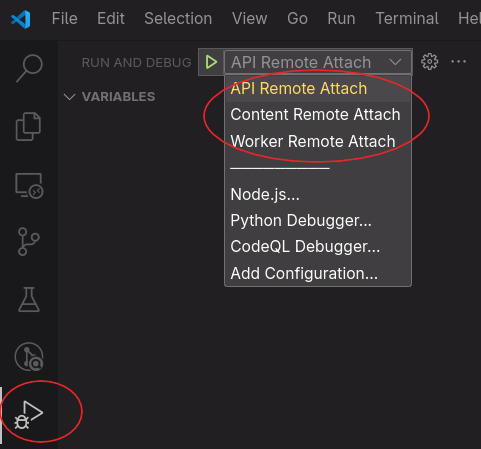
Running containers inside a vagrant box
Since Fedora uses Podman by default, a Vagrant VM is used instead of running Docker directly. This approach provides a consistent development environment and prevents conflicts with the host machine's package management system.
Prerequisites
Ensure that in the same level as the Vagrantfile, there is a directory named source. This directory is used to make the cloned repository available inside the VM.
Clone your fork of the repository inside local-env/source so it will be accessible in /home/vagrant/source within the VM:
Running the Setup
To set up the VM and start Docker:
Once the VM is up, SSH into it:
Verify Docker is running inside the VM:
The Vagrantfile Configuration
The Vagrantfile used:
Vagrant.configure("2") do |config|
  config.vm.box = "ubuntu/jammy64"
  config.ssh.forward_agent = true
  config.vm.network "public_network", bridge: "<your-network-device>"

  config.vm.provider "virtualbox" do |vb|
    vb.memory = "<your-memory-value>"
    vb.cpus = <your-cpu-value>
  end

  config.vm.synced_folder "./source", "/home/vagrant/source"

  config.vm.provision "shell", inline: <<-SHELL
    sudo apt-get update
    sudo apt-get install -y apt-transport-https ca-certificates curl software-properties-common git make

    sudo apt-get remove -y docker docker-engine docker.io containerd runc
    curl -fsSL https://download.docker.com/linux/ubuntu/gpg | sudo gpg --dearmor -o /usr/share/keyrings/docker-archive-keyring.gpg
    echo "deb [arch=$(dpkg --print-architecture) signed-by=/usr/share/keyrings/docker-archive-keyring.gpg] https://download.docker.com/linux/ubuntu focal stable" | sudo tee /etc/apt/sources.list.d/docker.list > /dev/null
    sudo apt-get update
    sudo apt-get install -y python3 python3-pip docker-ce docker-ce-cli containerd.io docker-buildx-plugin docker-compose-plugin

    curl -fsSL https://deb.nodesource.com/setup_20.x | sudo -E bash -
    sudo apt install nodejs -y

    sudo usermod -aG docker vagrant

    docker login -u='mmagnani' -p="$QUAY_TOKEN" quay.io

    sudo apt-add-repository --yes --update ppa:ansible/ansible
    sudo apt-get install -y ansible
  SHELL
end
Final Notes
- Update the "bridge" value to match the name of your network device.
- Adjust the memory and CPU values in the Vagrantfile according to your needs.
- The VM includes Docker, Node.js, and Ansible for development.
- Code is stored in
local-env/source.
TBD